
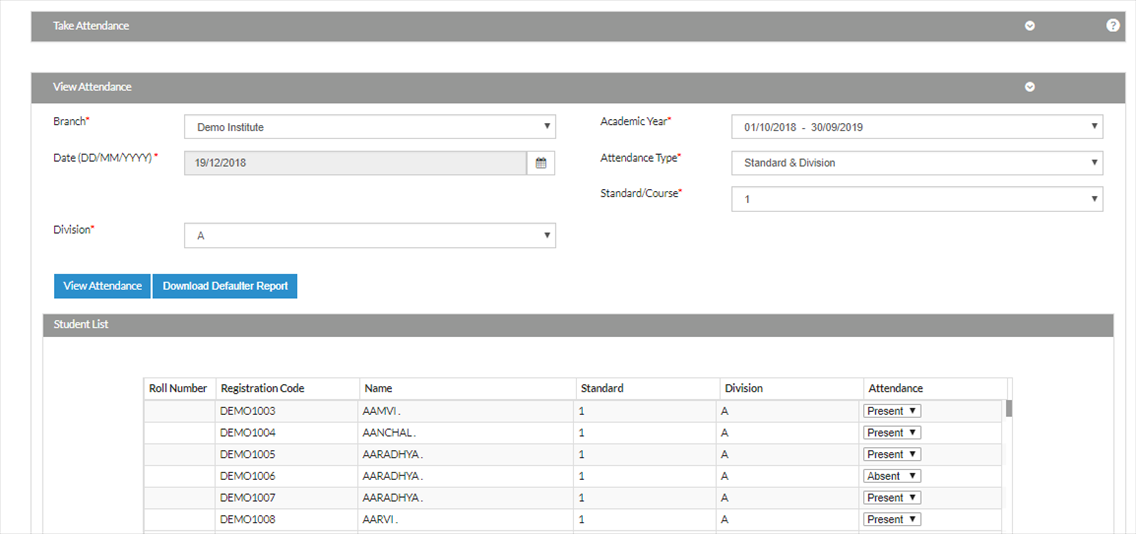
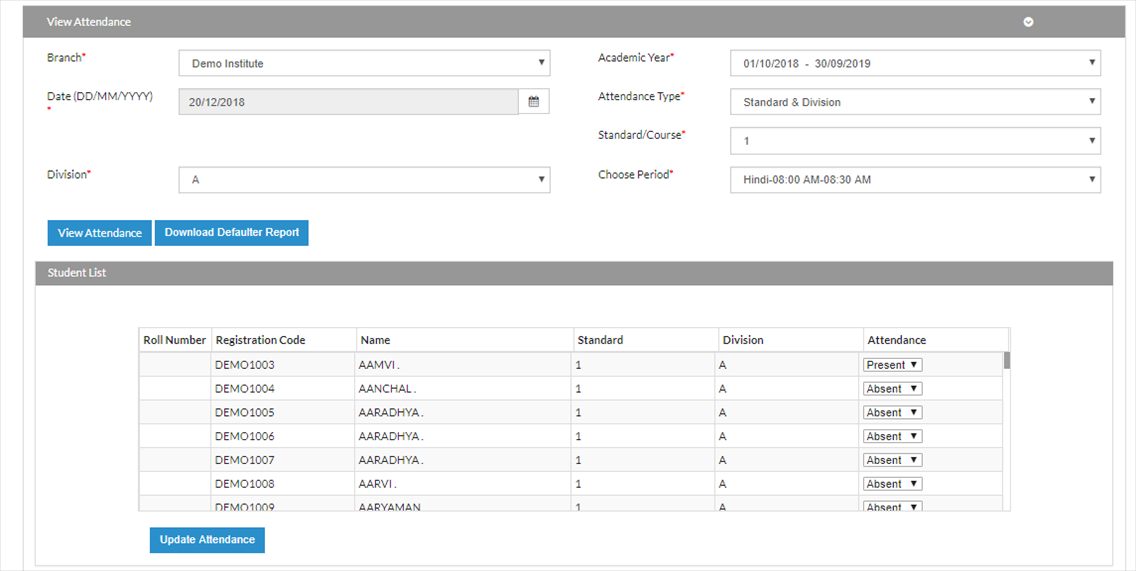
To view day-wise and subject-wise attendance:
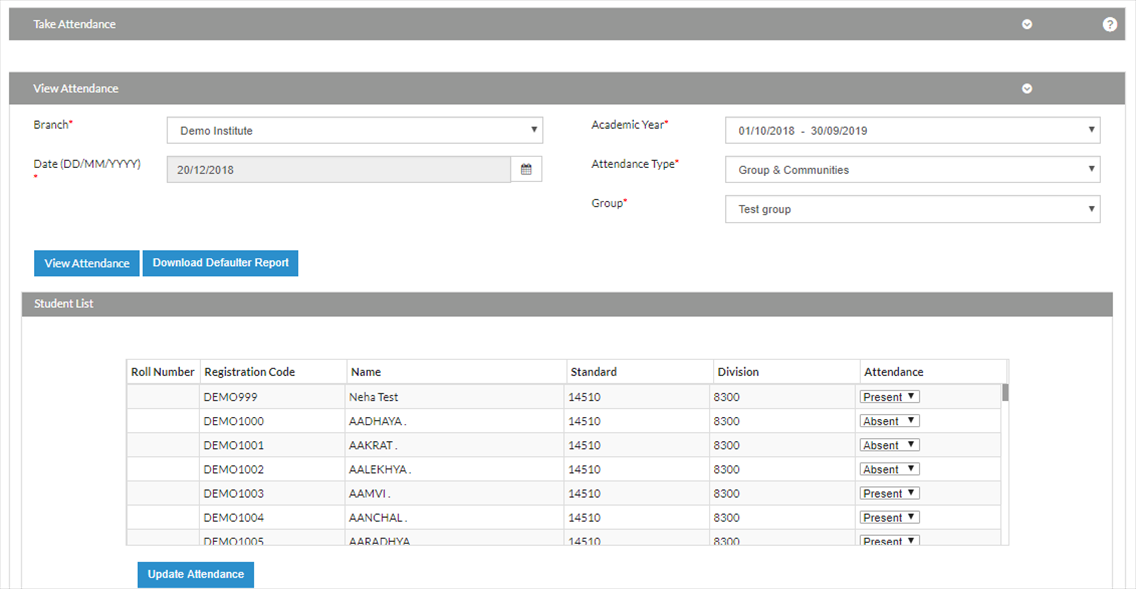
To view Group Attendance:
Click on View Attendance. Select the branch.
Select the attendance type as Group & Communitites
Select the group for which attendance is to be viewed -> Click on View Attendance
How to update Attendance
In case you want to mark a present student as absent or vice versa, it can be done by clicking on update attendance.
Mark the student as present or absent by selecting it from drop-down and then click on Update Attendance